Validating Controls in Silverlight
If ever you have done validation of form controls in ASP.NET or Desktop applications then validating controls in Silverlight will be easy to get to grips with. Unfortunately there are no controls in Silverlight that perform validation, maybe Microsoft will release some at some point but for now we have a few tips for validating and a simple example Registration Form with basic validation.
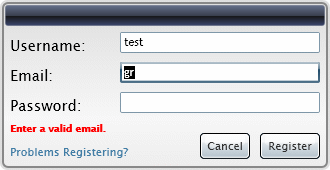
 You need to login to Download the default DropDown styles, If you do not have a login you can register for free!
The XAML for the above dialog is as follows:
<UserControl x:Class="SilverlightApplication1.Page"
xmlns="http://schemas.microsoft.com/winfx/2006/xaml/presentation"
xmlns:x="http://schemas.microsoft.com/winfx/2006/xaml"
xmlns:liquid="clr-namespace:Liquid;assembly=Liquid"
Width="400" Height="300">
<Canvas>
<Rectangle Width="330" Height="170" RadiusX="7" RadiusY="7" Fill="#44888888" />
<Rectangle Canvas.Left="2" Canvas.Top="2" Width="326" Height="166" RadiusX="5" RadiusY="5" StrokeThickness="2" Stroke="#888888">
<Rectangle.Fill>
<LinearGradientBrush StartPoint="0.5,0" EndPoint="0.5,1">
<GradientStop Color="#ffdfdfdf" Offset="0.0" />
<GradientStop Color="#fff8f8f8" Offset="0.7" />
<GradientStop Color="#ffeeeeee" Offset="1.0" />
</LinearGradientBrush>
</Rectangle.Fill>
</Rectangle>
<Rectangle Canvas.Left="5" Canvas.Top="5" Width="320" Height="21" StrokeThickness="0.5" Stroke="#7A8295" RadiusX="3" RadiusY="3">
<Rectangle.Fill>
<LinearGradientBrush StartPoint="0.5,0" EndPoint="0.5,1">
<GradientStop Color="#626C88" Offset="0.0" />
<GradientStop Color="#393F4D" Offset="0.5" />
<GradientStop Color="#151516" Offset="0.5" />
<GradientStop Color="#3C476F" Offset="1.0" />
</LinearGradientBrush>
</Rectangle.Fill>
</Rectangle>
<TextBlock Text="Username:" Canvas.Left="10" Canvas.Top="35" />
<TextBox x:Name="newUsername" Canvas.Left="120" Canvas.Top="32" Width="200" TabIndex="0" />
<TextBlock Text="Email:" Canvas.Left="10" Canvas.Top="65" />
<TextBox x:Name="newEmail" Canvas.Left="120" Canvas.Top="62" Width="200" TabIndex="1" />
<TextBlock Text="Password:" Canvas.Left="10" Canvas.Top="95" />
<TextBox x:Name="newPassword" Canvas.Left="120" Canvas.Top="92" Width="200" TabIndex="2" />
<HyperlinkButton x:Name="registerHelp" Canvas.Left="10" Canvas.Top="146" NavigateUri="help.aspx" Content="Problems Registering?" />
<TextBlock x:Name="registerStatus" Canvas.Left="10" Canvas.Top="121" Foreground="Red" FontSize="10" FontWeight="Bold" />
<Button Canvas.Left="200" Canvas.Top="133" Width="50" Content="Cancel" Click="RegisterCancel_Click" />
<Button x:Name="registerRegister" Canvas.Left="260" Canvas.Top="133" Width="60" Content="Register" Click="Register_Click" />
</Canvas>
</UserControl>
As you can see in our XAML we define three TextBox controls, one for our Username, Email address and Password. The validation we are going to perform is fairly simple, in our C# we will write an event handler for the Click event of the Login button and perform our validation there.
using System;
using System.Collections.Generic;
using System.Linq;
using System.Net;
using System.Text;
using System.Text.RegularExpressions;
using System.Windows;
using System.Windows.Controls;
using System.Windows.Documents;
using System.Windows.Input;
using System.Windows.Media;
using System.Windows.Media.Animation;
using System.Windows.Shapes;
namespace SilverlightApplication1
{
public partial class Page : UserControl
{
public Page()
{
InitializeComponent();
}
private void RegisterCancel_Click(object sender, RoutedEventArgs e)
{
// Registration has been cancelled. Handle this here
}
private void Register_Click(object sender, RoutedEventArgs e)
{
// Clear the status text
registerStatus.Text = "";
if (newPassword.Text.Length == 0)
{
// No password entered
registerStatus.Text = "Enter a password.";
newPassword.Focus();
}
if (newEmail.Text.Length == 0)
{
// No email address entered
registerStatus.Text = "Enter an email.";
newEmail.Focus();
}
else if (!Regex.IsMatch(newEmail.Text, @"^[a-zA-Z][\w\.-]*[a-zA-Z0-9]@[a-zA-Z0-9][\w\.-]*[a-zA-Z0-9]\.[a-zA-Z][a-zA-Z\.]*[a-zA-Z]$"))
{
// An invalid email format was entered
registerStatus.Text = "Enter a valid email.";
newEmail.Select(0, newEmail.Text.Length);
newEmail.Focus();
}
if (newUsername.Text.Length == 0)
{
// No username was entered
registerStatus.Text = "Enter a username.";
newUsername.Focus();
}
// Return if the status text is not empty
if (registerStatus.Text.Length > 0)
{
return;
}
// All done, the 3 fields have been validated
// Do your registration processing here....
}
}
}
As you can see from the code we ensure the fields are not empty before performing an extra check on the email address field to see if the string entered "looks" like an email address. This will stop most typing mistakes by the user but, as there is no way to completely validate the email, you should implement your own additional steps to validate the email address.



