
Context Menu with the Right Mouse Button Events
Introduced in Silverlight 4 are several new events, two of these MouseRightButtonDown and MouseRightButtonUp relate to the right mouse button. With these new events it is now easy to implement a right click context menu.
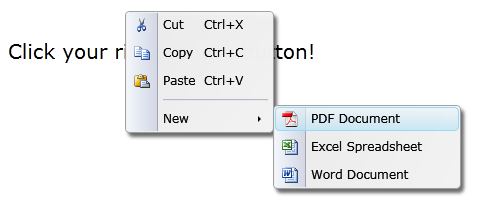
Here we are using the Liquid Popup Menu control for our context menu. When the MouseRightButtonDown event occurs we work out the X/Y position of the mouse and position/show the context menu.
It is important to set e.Handled = true when we have finished in the event handler in order to ensure Silverlight does not show the default Silverlight Context menu.
Liana wrote:
I have a liquid menu which has also submenus. It seems that if the browser is zoomed the submenus are not displayed anymore.
Is there a solution for this problem?
Thanks.
HItesh wrote:
HI johnrahn,
You can also access Menu and sub menu item using event MouseLeftButtonDown. It works for me.
Thanks.
johnrahn wrote:
Excellent tutorial on your menus and use of Liquid!
Question: How do I access the new|pdf/word/excel submenu items?
I figured it out by trial and error:Just use "pdf" or "word" or "excel" as comparison to e.Tag.ToString().
Seems like these SHOULD be sub-tags to the "new" menu item.
Thank you
JR
Guzikowski wrote:
Hi,
Is there an easy way to configure the menu items of menu based on the canvas? I have an image and certain regions will have 2 or 3 menu items, while certain menu items may have two levels. What I would like to do is generate the context menu based on an XML file or better yet a SharePoint list. Just wondering if this is feasible before I run myself ragged.
Thanks for any advice you can give on this issue,
Ed
Serge wrote:
Ok it' work with Icon="../images/cut.png
But about <StackPanel>
Serge wrote:
It's very nice RightClickMenu but I got 2 questions.
1) It's possible to use it in <StackPanel> rather <Canvas>?
2) I create a images directory in the SilverLight Project with icones. But I cannot see those icones in my menu. I try a lot of paths : images/cut.png, /images/cut.png, ~/images/cut.png, etc. Nothing work. Any Idea?
THank a lot and congradulation about your vers usuful tools in SL 4.
Guide the car to its parking space in this fun Car Parking game.

Aim for the Trash Can and get the various items of Trash in the bin.
Fly your plane in this colorful vertical scrolling shoot-em-up. Blast the bad guys and collect any bonus's they leave behind.
Pop as many bubbles as possible in this fun and colorful bubble popping game. The levels start off easy enough but gradually get harder!
Here we have a bunch of monsters that need to be matched up. Look out for the bomb and spinning monsters that will cause special damage!

Guide your friendly Bird through the maze of pipes and other obstacles collecting the Stars in this cool arcade game inspired by the legendary Flappy Bird.
You are stranded on an Alien planet. Your goal is to build a space rocket and escape. Start by building units to create power and mine the metal patches. Build defenses to defend your base from the advancing Aliens and Zombies!

Play Pool against the computer or battle against your friends in the online mode!
Slice the fruit that is thrown up onto the screen. Slice the fruit into multiple pieces for maximum points!
Liana wrote:
I have a liquid menu which has also submenus. It seems that if the browser is zoomed the submenus are not displayed anymore.
Is there a solution for this problem?
Thanks.
HItesh wrote:
HI johnrahn,
You can also access Menu and sub menu item using event MouseLeftButtonDown. It works for me.
Thanks.
johnrahn wrote:
Excellent tutorial on your menus and use of Liquid!
Question: How do I access the new|pdf/word/excel submenu items?
I figured it out by trial and error:Just use "pdf" or "word" or "excel" as comparison to e.Tag.ToString().
Seems like these SHOULD be sub-tags to the "new" menu item.
Thank you
JR
Guzikowski wrote:
Hi,
Is there an easy way to configure the menu items of menu based on the canvas? I have an image and certain regions will have 2 or 3 menu items, while certain menu items may have two levels. What I would like to do is generate the context menu based on an XML file or better yet a SharePoint list. Just wondering if this is feasible before I run myself ragged.
Thanks for any advice you can give on this issue,
Ed
Serge wrote:
Ok it' work with Icon="../images/cut.png
But about <StackPanel>
Serge wrote:
It's very nice RightClickMenu but I got 2 questions.
1) It's possible to use it in <StackPanel> rather <Canvas>?
2) I create a images directory in the SilverLight Project with icones. But I cannot see those icones in my menu. I try a lot of paths : images/cut.png, /images/cut.png, ~/images/cut.png, etc. Nothing work. Any Idea?
THank a lot and congradulation about your vers usuful tools in SL 4.