Desktop Notification Window
This useful tutorial demonstrates how to use the NotificationWindow in order to show useful information to the user. Note this functionality is only available to Silverlight applications running in Out of Browser (OOB) mode.
 You need to login to Download the example, If you do not have a login you can register for free!
<UserControl x:Class="SilverlightNotifications.MainPage"
xmlns="http://schemas.microsoft.com/winfx/2006/xaml/presentation"
xmlns:x="http://schemas.microsoft.com/winfx/2006/xaml"
xmlns:d="http://schemas.microsoft.com/expression/blend/2008"
xmlns:mc="http://schemas.openxmlformats.org/markup-compatibility/2006"
mc:Ignorable="d"
d:DesignHeight="300" d:DesignWidth="400">
<Grid x:Name="LayoutRoot" Background="White">
<Button x:Name="notify" Width="100" Height="30" Content="Notify Me!" Click="notify_Click" />
</Grid>
</UserControl>
using System;
using System.Collections.Generic;
using System.Linq;
using System.Net;
using System.Windows;
using System.Windows.Controls;
using System.Windows.Documents;
using System.Windows.Input;
using System.Windows.Media;
using System.Windows.Media.Animation;
using System.Windows.Shapes;
namespace SilverlightNotifications
{
public partial class MainPage : UserControl
{
public MainPage()
{
InitializeComponent();
}
private void notify_Click(object sender, RoutedEventArgs e)
{
NotificationWindow notify = new NotificationWindow();
notify.Height = 74;
notify.Width = 329;
MyNotification note = new MyNotification();
note.Set("My Message", "Hello desktop from Silverlight 4!");
note.Width = notify.Width;
note.Height = notify.Height;
notify.Content = note;
notify.Show(4000);
}
}
}
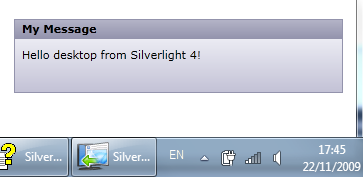
The above will, when the button is clicked, display a notification window in the bottom right area of the users desktop. The content for the window can be anything, in this example we have used a custom User Control which contains two properties Header and Message.
<UserControl x:Class="SilverlightNotifications.MyNotification"
xmlns="http://schemas.microsoft.com/winfx/2006/xaml/presentation"
xmlns:x="http://schemas.microsoft.com/winfx/2006/xaml"
xmlns:d="http://schemas.microsoft.com/expression/blend/2008"
xmlns:mc="http://schemas.openxmlformats.org/markup-compatibility/2006"
mc:Ignorable="d"
d:DesignHeight="300" d:DesignWidth="400">
<Grid x:Name="LayoutRoot" Background="White">
<Grid.RowDefinitions>
<RowDefinition Height="20" />
<RowDefinition />
</Grid.RowDefinitions>
<Border Grid.Row="0" Padding="8 2 8 2">
<Border.Background>
<LinearGradientBrush StartPoint="0.5,0" EndPoint="0.5,1">
<GradientStop Color="#B6B6C9" Offset="0.0" />
<GradientStop Color="#9393AD" Offset="1.0" />
</LinearGradientBrush>
</Border.Background>
<TextBlock x:Name="header" FontWeight="Bold" />
</Border>
<Border Grid.Row="1" Padding="8">
<Border.Background>
<LinearGradientBrush StartPoint="0.5,0" EndPoint="0.5,1">
<GradientStop Color="#ECECF4" Offset="0.0" />
<GradientStop Color="#C3C2D6" Offset="1.0" />
</LinearGradientBrush>
</Border.Background>
<TextBlock x:Name="message" />
</Border>
</Grid>
</UserControl>
using System;
using System.Collections.Generic;
using System.Linq;
using System.Net;
using System.Windows;
using System.Windows.Controls;
using System.Windows.Documents;
using System.Windows.Input;
using System.Windows.Media;
using System.Windows.Media.Animation;
using System.Windows.Shapes;
namespace SilverlightNotifications
{
public partial class MyNotification : UserControl
{
public MyNotification()
{
InitializeComponent();
}
public void Set(string head, string mess)
{
header.Text = head;
message.Text = mess;
}
}
}
Here we have a simple User Control that is rendered when the notification is displayed.



