
Vectorlight News

  • Chat App Converted to HTML and JQuery
    Sep 08, 2011

    Converted from Silverlight to HTML and Javascript/JQuery is the Vectorlight Chat App. Login using your Vectorlight password to chat using your username and avatar.

  • HTML5 iPhone,Android Big Guns Tower Defense
    Jul 02, 2011

    Big Guns has made the leap from Windows Phone 7 (XNA) to HTML5 so you can now play it on your iPhone, Android and other HTML5 compatible devices.

  • HTML5 Games - Word Poppers and Batty
    Jun 04, 2011

    As the take-up of HTML5 quickens (74% of users currently have a browser capable of HTML5 Canvas) we present two more games for both your browser and mobile.

  • Big Guns Tower Defense on Windows Phone 7
    May 06, 2011

    Coming soon to Windows Phone 7 is an XNA port of the popular Vectorlight tower defense game Super Tower Defense. Whilst retaining many of the graphical and gameplay features of the original Silverlight game.

  • Wakacube WP7 Update
    Apr 26, 2011

    Released to the Windows Phone 7 marketplace today is Version 1.1 of Wakacube the 3D physics game of skill. Included in the update are more levels (30 in total) and new mode Wakatime which generates random crate structures to keep players entertained long after the levels have been completed.

  • Home Page News

Shapes and Fill Styles

Built into HTML5 is the ability to draw various shapes using various fill styles such as solid colors and gradients.  Lets start with the HTML to declare our Canvas element, this will be used throughout the examples on this page.

<body onload="drawCanvas();">
    <div>
        <canvas id="myCanvas" width="150" height="150">
            <p>Your browser doesn't support canvas.</p>
        </canvas>
    </div>
</body>

Drawing a Rectangle

Here we use the Canvas element to draw a simple rectangle.

As with our other examples we declare our Canvas element and call the drawCanvas() method when the page loads.

function drawCanvas() {
    // Get our Canvas element
    var surface = document.getElementById("myCanvas");

    if (surface.getContext) {
        // If Canvas is supported
        var context = surface.getContext('2d');

        // Set the fill style to Red
        context.fillStyle = "rgb(255,0,0)";
        
        // Draw the rectangle 50x50 pixels in dimension at x/y 10,10
        context.fillRect(10, 10, 50, 50);
    }
}

The property fillStyle as its name suggests should be set to your desired fill type, in this example we simple set a solid color.  After setting the fill style we call the fillRect() method, this takes 4 parameters, the top left position and the width and height of the rectangle to draw.

Solid Fill Style

Gradient Fills

In our rectangle above we use a solid color to fill it, here we will use a gradient fill instead.

function drawCanvas() {
    // Get our Canvas element
    var surface = document.getElementById("myCanvas");

    if (surface.getContext) {
        // If Canvas is supported
        var context = surface.getContext('2d');
        // Create our gradient
        var gradient = context.createLinearGradient(0, 0, 150, 0);
        // Add 2 steps to it
        gradient.addColorStop(0, "rgb(100,0,0)");
        gradient.addColorStop(1, "rgb(255,0,0)");
        // Assign our gradient to the fillStyle
        context.fillStyle = gradient;
        // Draw the rectangle 150x150 pixels in dimension
        context.fillRect(0, 0, 150, 150);
    }
}

Here we create a linear gradient object using the createLinearGradient() method, this takes 4 parameters that specify the top left coordinates and the width/height of the gradient.  In this example we make it 150x150 in size, the same as our Canvas.
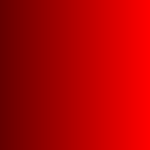
Gradient Fill

What if you wanted the gradient to go from top to bottom?  You simply change the x and y coordinates you used when creating the gradient.

// Create our gradient
var gradient = context.createLinearGradient(0, 0, 0, 150);

Vertical Gradient

Drawing a Circle

There isn't a drawCircle() method in HTML5, instead we use the arc() method.

function drawCanvas() {
    // Get our Canvas element
    var surface = document.getElementById("myCanvas");

    if (surface.getContext) {
        // If Canvas is supported
        var context = surface.getContext('2d');

        // Draw our circle using the arc() method
        context.beginPath();
        context.arc(30, 30, 20, 0, Math.PI * 2, false);
        context.closePath();

        // Our circle will not appear until we specify a stroke/fill
        context.fillStyle = "#ff0000";
        context.lineWidth = 2;
        context.strokeStyle = "#0000ff";
        context.stroke();
        context.fill();
    }
}

Here we set the stroke to #0000ff (Red) with a thickness of 2 pixels.  To actually draw the stroke we call stroke().  The fill style used here is simpy a solid Red.

Solid Circle

Rate this: 

1 Star 2 Star 3 Star 4 Star 5 Star
7 Ratings / 4.6 Average

Tweets

Silverlight Controls

  • Rich TextBox

    Create and edit rich content with this slick and expandable Rich TextBox...

  • TreeView

    This easy to use TreeView comes with drag and drop, sorting, searching and much more...

  • Context Menu

    You too can have cool popup context menus in your Silverlight applications...

  • Resizable Dialog

    Draggable and resizable popup dialogs are what serious Silverlight developers need...

  • Spell Checker

    Real-time spell checking in Silverlight? We did it first here...