Silverlight Rich TextBox
This free Silverlight Rich TextBox is easy to implement on your Silverlight driven website and is also customizable to provide a visual feel suitable for any site design.
To use the Rich TextBox control you will need to add a reference to Liquid.RichText.dll in your project.
 You need to login to Download the Rich TextBox example, If you do not have a login you can register for free!
How to Use the Rich TextBox Control
To use the Rich TextBox on your Silverlight page:
<UserControl x:Class="RichTextBox.Page"
xmlns="http://schemas.microsoft.com/winfx/2006/xaml/presentation"
xmlns:x="http://schemas.microsoft.com/winfx/2006/xaml"
xmlns:liquidRichText="clr-namespace:Liquid;assembly=Liquid.RichText"
Width="400" Height="300">
<Canvas x:Name="LayoutRoot" Background="White">
<StackPanel Orientation="Horizontal" Canvas.Left="10" Canvas.Top="20">
<Button x:Name="makeBold" Width="24" Height="23" Click="MakeBold_Click" Margin="10, 2, 2, 2" ToolTipService.ToolTip="Bold">
<TextBlock x:Name="boldText" Text="B" FontFamily="Arial" FontSize="14" FontWeight="Bold" HorizontalAlignment="Center" VerticalAlignment="Center" />
</Button>
<Button x:Name="makeItalic" Width="24" Height="23" Click="MakeItalic_Click" Margin="2" ToolTipService.ToolTip="Italic">
<TextBlock x:Name="italicText" Text="I" FontFamily="Arial" FontSize="14" FontStyle="Italic" HorizontalAlignment="Center" VerticalAlignment="Center" />
</Button>
<Button x:Name="makeUnderline" Width="24" Height="23" Click="MakeUnderline_Click" Margin="2" ToolTipService.ToolTip="Underline">
<TextBlock x:Name="underlineText" Text="U" FontFamily="Arial" FontSize="14" TextDecorations="Underline" HorizontalAlignment="Center" VerticalAlignment="Center" />
</Button>
<ComboBox x:Name="selectFontFamily" Width="155" Height="23" Margin="10, 2, 2, 2" SelectionChanged="SelectFontFamily_ItemSelected">
<ComboBoxItem Content="Arial" FontSize="14" FontFamily="Arial" IsSelected="True" />
<ComboBoxItem Content="Arial Black" FontSize="14" FontFamily="Arial Black" />
<ComboBoxItem Content="Comic Sans MS" FontSize="14" FontFamily="Comic Sans MS" />
<ComboBoxItem Content="Courier New" FontSize="14" FontFamily="Courier New" />
<ComboBoxItem Content="Lucida Grande" FontSize="14" FontFamily="Lucida Grande" />
<ComboBoxItem Content="Lucida Sans Unicode" FontSize="14" FontFamily="Lucida Sans Unicode" />
<ComboBoxItem Content="Times New Roman" FontSize="14" FontFamily="Times New Roman" />
<ComboBoxItem Content="Trebuchet MS" FontSize="14" FontFamily="Trebuchet MS" />
<ComboBoxItem Content="Verdana" FontSize="14" FontFamily="Verdana" />
</ComboBox>
<ComboBox x:Name="selectFontSize" Width="45" Height="23" Margin="2" SelectionChanged="SelectFontSize_ItemSelected">
<ComboBoxItem Content="8" />
<ComboBoxItem Content="9" />
<ComboBoxItem Content="10" IsSelected="True" />
<ComboBoxItem Content="11" />
<ComboBoxItem Content="12" />
<ComboBoxItem Content="14" />
<ComboBoxItem Content="16" />
<ComboBoxItem Content="18" />
<ComboBoxItem Content="20" />
<ComboBoxItem Content="22" />
<ComboBoxItem Content="24" />
<ComboBoxItem Content="26" />
<ComboBoxItem Content="28" />
<ComboBoxItem Content="36" />
<ComboBoxItem Content="48" />
<ComboBoxItem Content="72" />
</ComboBox>
</StackPanel>
<liquidRichText:RichTextBox x:Name="richTextBox" Canvas.Left="20" Canvas.Top="50" Width="295" Height="200" />
</Canvas>
</UserControl>
The Rich TextBox can be set to plain text or rich text in the custom format.
using System;
using System.Collections.Generic;
using System.Linq;
using System.Net;
using System.Windows;
using System.Windows.Controls;
using System.Windows.Documents;
using System.Windows.Input;
using System.Windows.Media;
using System.Windows.Media.Animation;
using System.Windows.Shapes;
using Liquid;
using Liquid.Components;
namespace RichTextBox
{
public partial class Page : UserControl
{
#region Private Properties
private SolidColorBrush _buttonFillStyleNotApplied = new SolidColorBrush(Color.FromArgb(255, 0, 0, 0));
private SolidColorBrush _buttonFillStyleApplied = new SolidColorBrush(Color.FromArgb(255, 255, 0, 0));
private bool _ignoreFormattingChanges = false;
#endregion
public Page()
{
InitializeComponent();
richTextBox.Text = "Some plain text.";
richTextBox.SelectionChanged += new RichTextBoxEventHandler(RichTextBox_SelectionChanged);
}
private void RichTextBox_SelectionChanged(object sender, RichTextBoxEventArgs e)
{
UpdateFormattingControls();
}
private void UpdateFormattingControls()
{
makeBold.Background = _buttonFillStyleNotApplied;
makeItalic.Background = _buttonFillStyleNotApplied;
makeUnderline.Background = _buttonFillStyleNotApplied;
if (richTextBox.SelectionStyle.Weight == FontWeights.Bold)
{
makeBold.Background = _buttonFillStyleApplied;
}
if (richTextBox.SelectionStyle.Style == FontStyles.Italic)
{
makeItalic.Background = _buttonFillStyleApplied;
}
if (richTextBox.SelectionStyle.Decorations == TextDecorations.Underline)
{
makeUnderline.Background = _buttonFillStyleApplied;
}
SetSelected(selectFontFamily, richTextBox.SelectionStyle.Family);
SetSelected(selectFontSize, richTextBox.SelectionStyle.Size.ToString());
}
private void SetSelected(ComboBox combo, string value)
{
if (value != null)
{
_ignoreFormattingChanges = true;
foreach (ComboBoxItem item in combo.Items)
{
if (item.Content.ToString().ToLower() == value.ToLower())
{
combo.SelectedItem = item;
break;
}
}
_ignoreFormattingChanges = false;
}
}
private void MakeBold_Click(object sender, RoutedEventArgs e)
{
Formatting format = (makeBold.Background == _buttonFillStyleNotApplied ? Formatting.Bold : Formatting.RemoveBold);
ExecuteFormatting(format, null);
}
private void MakeItalic_Click(object sender, RoutedEventArgs e)
{
Formatting format = (makeItalic.Background == _buttonFillStyleNotApplied ? Formatting.Italic : Formatting.RemoveItalic);
ExecuteFormatting(format, null);
}
private void MakeUnderline_Click(object sender, RoutedEventArgs e)
{
Formatting format = (makeUnderline.Background == _buttonFillStyleNotApplied ? Formatting.Underline : Formatting.RemoveUnderline);
ExecuteFormatting(format, null);
}
private void SelectFontFamily_ItemSelected(object sender, EventArgs e)
{
if (selectFontFamily != null)
{
ExecuteFormatting(Formatting.FontFamily, ((ComboBoxItem)selectFontFamily.SelectedItem).Content.ToString());
}
}
private void SelectFontSize_ItemSelected(object sender, EventArgs e)
{
if (selectFontSize != null)
{
ExecuteFormatting(Formatting.FontSize, double.Parse(((ComboBoxItem)selectFontSize.SelectedItem).Content.ToString()));
}
}
private void ExecuteFormatting(Formatting format, object param)
{
if (!_ignoreFormattingChanges)
{
richTextBox.ApplyFormatting(format, param);
richTextBox.ReturnFocus();
}
}
}
}
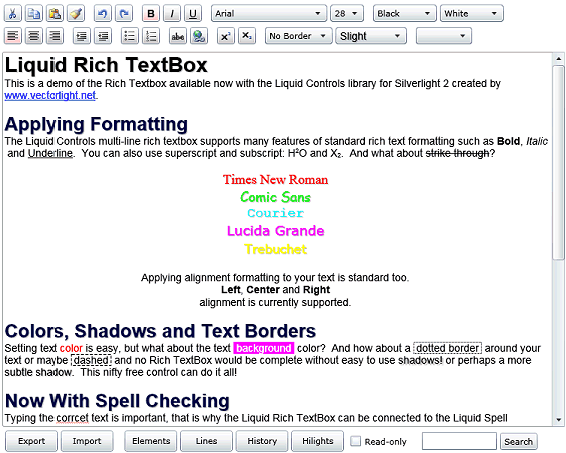
Example Silverlight Rich TextBox Control:
Further Information



