
Latest News

  • Super Tower Defense Game
    Mar 10, 2010

    New to the games section is the new Super Tower Defense game. Defend your base from the ever advancing army of tanks, buggies...

  • New Rich Text Editor User Control
    Feb 19, 2010

    By popular request, here we present a re-usable User Control containing the Liquid RichTextBox along with the most common formatting functions included.

  • Silverlight 3 Controls V5.2.7 Released
    Feb 19, 2010

    This release includes several fixes for issues raised in the forum. The main improvement is to the RichTextBox which now provides access and methods to the document elements allowing...

  • Super Shoot Em Up Game
    Feb 04, 2010

    Added to the games section is the new Super Shoot 'Em Up game. Take control of a tank with your aim being to blow up your opposing tanks and collect all the powerups.

  • Silverlight 3 Controls V5.2.6 Released
    Feb 04, 2010

    This release includes some minor fixes for several forum posts. Please see the notes on the download page for full details on what has changed.

Dynamic Transforms

Applying transforms to elements in XAML is fairly straight forward, for example the following will rotate some text:


<TextBlock Text="Some Rotated Text!">
    <TextBlock.RenderTransform>
        <RotateTransform Angle="90" />
    </TextBlock.RenderTransform>
</TextBlock>

Obviously this is fine for static rotation values, and animations using a Storyboard, however what if you want to specify the rotation in C#?  Or perhaps a Scale Transform in C#?
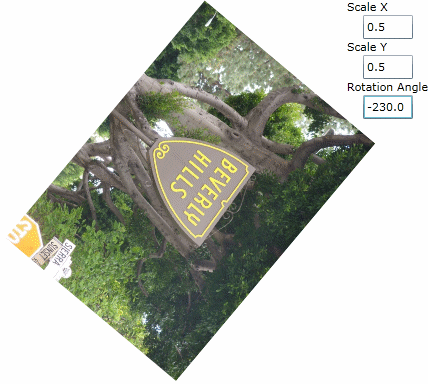
Dynamic Transforms

This simple example allows you to specify Rotation and Scale values and the image is rotated to reflect the current settings.

<UserControl x:Class="DynamicTransforms.MainPage"
    xmlns="http://schemas.microsoft.com/winfx/2006/xaml/presentation"
    xmlns:x="http://schemas.microsoft.com/winfx/2006/xaml"
    xmlns:d="http://schemas.microsoft.com/expression/blend/2008"
    xmlns:mc="http://schemas.openxmlformats.org/markup-compatibility/2006"
    mc:Ignorable="d" d:DesignWidth="640" d:DesignHeight="480">
    <Grid x:Name="LayoutRoot">
        <Grid.ColumnDefinitions>
            <ColumnDefinition />
            <ColumnDefinition Width="Auto" />
        </Grid.ColumnDefinitions>
        <Image x:Name="image" Grid.Column="0" Source="assets/sign.jpg" Stretch="None" />
        <StackPanel Grid.Column="1" Orientation="Vertical">
            <TextBlock Text="Scale X" />
            <TextBox x:Name="scaleX" Width="50" Text="1.0" TextChanged="TextBox_TextChanged" />
            <TextBlock Text="Scale Y" />
            <TextBox x:Name="scaleY" Width="50" Text="1.0" TextChanged="TextBox_TextChanged" />
            <TextBlock Text="Rotation Angle" />
            <TextBox x:Name="rotate" Width="50" Text="0.0" TextChanged="TextBox_TextChanged" />
        </StackPanel>
    </Grid>
</UserControl>


Here we have 3 textboxes that allow you to specify the Rotation angle and the Scale X/Y values.

using System;
using System.Collections.Generic;
using System.Linq;
using System.Net;
using System.Windows;
using System.Windows.Controls;
using System.Windows.Documents;
using System.Windows.Input;
using System.Windows.Media;
using System.Windows.Media.Animation;
using System.Windows.Shapes;
using System.Windows.Threading;

namespace DynamicTransforms
{
    public partial class MainPage : UserControl
    {
        TransformGroup _tg = new TransformGroup();
        ScaleTransform _st = new ScaleTransform();
        RotateTransform _rt = new RotateTransform();
        private DispatcherTimer _timer = new DispatcherTimer();

        public MainPage()
        {
            InitializeComponent();

            Setup();
        }

        private void Setup()
        {
            _st.ScaleX = 1;
            _st.ScaleY = 1;

            _tg.Children.Add(_st);
            _tg.Children.Add(_rt);

            image.RenderTransform = _tg;
        }

        private void ValueChanged()
        {
            _st.ScaleX = double.Parse(scaleX.Text);
            _st.ScaleY = double.Parse(scaleY.Text);
            _rt.Angle = double.Parse(rotate.Text);
            _rt.CenterX = image.ActualWidth * 0.5;
            _rt.CenterY = image.ActualHeight * 0.5;
        }

        private void TextBox_TextChanged(object sender, TextChangedEventArgs e)
        {
            ValueChanged();
        }
    }
}


obviously you will need to the alter the image source in the XAML above.

Post your Comments

No comments found.

Silverlight Controls

  • Rich TextBox

    Create and edit rich content with this slick and expandable Rich TextBox...

  • TreeView

    This easy to use TreeView comes with drag and drop, sorting, searching and much more...

  • Context Menu

    You too can have cool popup context menus in your Silverlight applications...

  • Resizable Dialog

    Draggable and resizable popup dialogs are what serious Silverlight developers need...

  • Spell Checker

    Real-time spell checking in Silverlight? We did it first here...