
Creating a Context Menu
In Silverlight 4 detecting the right mouse click is fairly straight forward using the MouseRightButtonDown event that is available on all UIElement derived objects.
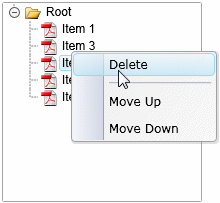
In this example here we build a simple TreeView and add a Popup Menu that allows you to manipulate the ordering of the child nodes:
 You need to login to Download the Context Menu example, If you do not have a login you can register for free!
Here is the XAML for this demonstration:
In the XAML we have our TreeView named myTreeView, this has a single Root node and some children. We also have our Popup Context Menu name contextMenu, this contains three options, Delete, Move Up and Move Down. You will see later on in the C# how these actions are handled.
It is important we are using a Canvas as our root element as we need to be able to position the Context Menu using absolute positioning. It is possible to add the context menu to a Grid element and use the Margin property instead to control the positioning.
The C# contains the important stuff here, the myTreeView_MouseRightButtonDown method handles the right-click event on our Tree. In here we use the GetNodeAtPoint() method of the Tree object to retrieve the node under the mouse.
Handling the menu events is a simple switch ... case block to perform our node editing operations.
Guide the car to its parking space in this fun Car Parking game.

Aim for the Trash Can and get the various items of Trash in the bin.
Fly your plane in this colorful vertical scrolling shoot-em-up. Blast the bad guys and collect any bonus's they leave behind.
Pop as many bubbles as possible in this fun and colorful bubble popping game. The levels start off easy enough but gradually get harder!
Here we have a bunch of monsters that need to be matched up. Look out for the bomb and spinning monsters that will cause special damage!

Guide your friendly Bird through the maze of pipes and other obstacles collecting the Stars in this cool arcade game inspired by the legendary Flappy Bird.
You are stranded on an Alien planet. Your goal is to build a space rocket and escape. Start by building units to create power and mine the metal patches. Build defenses to defend your base from the advancing Aliens and Zombies!

Play Pool against the computer or battle against your friends in the online mode!
Slice the fruit that is thrown up onto the screen. Slice the fruit into multiple pieces for maximum points!