Latest News

  • Super Tower Defense 2 Game
    Sep 03, 2010

    New to the games section is Super Tower Defense 2. Featuring more maps, new units and bigger explosions.

  • Super Cards Online Multiplayer Game
    Aug 13, 2010

    Released today in the games section is the new Super Cards multiplayer card game. The aim of the game is to get rid of all your playing cards before your opposition.

  • Silverlight Online Chat
    Jul 24, 2010

    Today we launch the new Silverlight Live Chat application demonstrating the Liquid RichTextBox and Emoticon replacements.

  • New Super Shoot Em Up 2 Game
    Jun 29, 2010

    Added to the Games section is the new Super Shoot 'Em Up 2 game. Take control of your tank with the aim to defeat the computer controlled opponents. Features all new weapons, levels and Battle Mode!

  • Silverlight 4 Controls V5.3.2 Released
    Jun 28, 2010

    This release contains several fixes raised in the forums.

Implementing Custom Colors

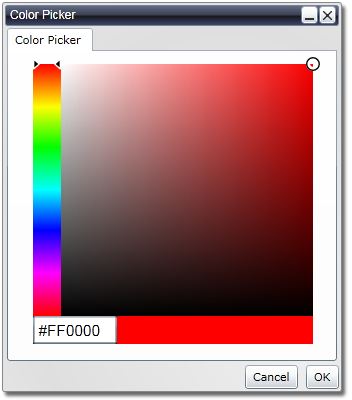
The Color Picker has a More Colors button allowing the user to select a color that is not available in the standard color set.  In this example we will use a color picker found here and show it in a Dialog when the More Colors button is clicked.


Color Picker

When the Custom Colors button is clicked we show our Color Picker dialog.

<UserControl x:Class="ColorSelectorCustomButton.MainPage"
    xmlns="http://schemas.microsoft.com/winfx/2006/xaml/presentation"
    xmlns:x="http://schemas.microsoft.com/winfx/2006/xaml"
    xmlns:d="http://schemas.microsoft.com/expression/blend/2008"
    xmlns:mc="http://schemas.openxmlformats.org/markup-compatibility/2006"
    xmlns:liquid="clr-namespace:Liquid;assembly=Liquid"
    xmlns:liquidPopup="clr-namespace:Liquid;assembly=Liquid.Popup"
    xmlns:custom="clr-namespace:ColorSelectorCustomButton"
    mc:Ignorable="d" d:DesignWidth="640" d:DesignHeight="480">
    <Grid x:Name="LayoutRoot">
        <liquid:ColorSelector x:Name="selectColor" HorizontalAlignment="Left" VerticalAlignment="Top" Margin="10" SelectionChanged="selectColor_ItemSelected" CustomClick="selectColor_CustomClick" />

        <liquidPopup:Dialog x:Name="colorPickerDialog" Width="340" Height="390" Title="Color Picker" Buttons="OK,Cancel" IsMaximizeEnabled="False" Closed="colorPickerDialog_Closed">
            <custom:ColorPicker x:Name="colorPicker" Margin="2" />
        </liquidPopup:Dialog>
    </Grid>
</UserControl>


using System;
using System.Collections.Generic;
using System.Linq;
using System.Net;
using System.Windows;
using System.Windows.Controls;
using System.Windows.Documents;
using System.Windows.Input;
using System.Windows.Media;
using System.Windows.Media.Animation;
using System.Windows.Shapes;
using Liquid;

namespace ColorSelectorCustomButton
{
    public partial class MainPage : UserControl
    {
        public MainPage()
        {
            InitializeComponent();
        }

        private void selectColor_ItemSelected(object sender, EventArgs e)
        {
            // Do something with the selected color
            Color color = selectColor.Selected;

            LayoutRoot.Background = new SolidColorBrush() { Color = color };
        }

        private void selectColor_CustomClick(object sender, RoutedEventArgs e)
        {
            // Show our color picker dialog
            colorPickerDialog.ShowAsModal();
        }

        private void colorPickerDialog_Closed(object sender, DialogEventArgs e)
        {
            if (colorPickerDialog.Result == DialogButtons.OK)
            {
                uint col = (uint)((colorPicker.Selected.A << 24) | (colorPicker.Selected.R << 16) | (colorPicker.Selected.G << 8) | colorPicker.Selected.B);
                
                // Assign the custom color to the next slot
                ColorSelector.Custom[ColorSelector.NextCustomSlot] = col;

                // Update the custom colors
                selectColor.Set(ColorSelector.Custom.ToArray(), true);
                // Update the selected color
                selectColor.Select(colorPicker.Selected);
            }
        }
    }
}


The colorPickerDialog_Closed event handler is responsible for setting the custom color in the Color Selector control and adding it to the custom colors list.

Rate this page: 

1 Star 2 Star 3 Star 4 Star 5 Star
10 Ratings / 2.9 Average

Ultimate Gamers

  • 1 Gh0sT
  • 2 stig
  • 3 dhoz
  • 4 seyhmusss
  • 5 mlitters
  • 6 RadiateLogic
  • 7 DutchRemco
  • 8 janso
  • 9 Gendibal
  • 10 dan

  • See the full chart here!

Silverlight Controls

  • Rich TextBox

    Create and edit rich content with this slick and expandable Rich TextBox...

  • TreeView

    This easy to use TreeView comes with drag and drop, sorting, searching and much more...

  • Context Menu

    You too can have cool popup context menus in your Silverlight applications...

  • Resizable Dialog

    Draggable and resizable popup dialogs are what serious Silverlight developers need...

  • Spell Checker

    Real-time spell checking in Silverlight? We did it first here...